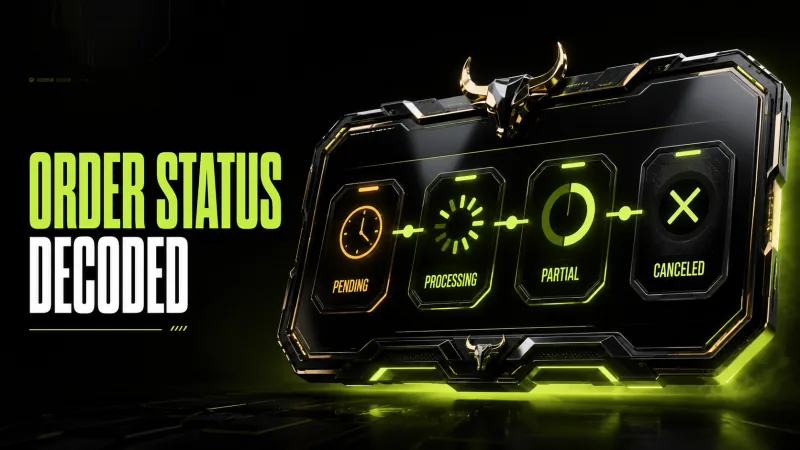
SMM Order Status Guide: What Pending, Processing, Partial, and Canceled Mean
An order status is an operations signal. It tells you where the panel believes an order is in its lifecycle. It does not guarantee sales, organic reach, recommendation placement, or permanent public counts.
The right response depends on the status, service description, elapsed time, link visibility, start count, remains, and other active orders. Use this guide before retrying or escalating.
Pending
Pending generally means the order was received and is waiting to start, validate, or enter a processing queue. Compare elapsed time with the service's current start-time estimate.
Check that the link is public, the object matches the service, and the quantity is within Min and Max. If the order remains inside its stated window, wait. If it is materially outside that window, prepare a ticket.
Do not place a duplicate order on the same link. A second order does not move the first one forward and may create overlap when both begin.
Processing or In Progress
This status means the order is active or delivery has begun. Start time and completion time are different. A service can start quickly and take longer to finish based on quantity and delivery pattern.
Keep the link stable. Do not change the username, delete the content, make the account private, or create another order targeting the same object.
If movement pauses, review speed and remains. Delivery may occur in batches. Escalate only after comparing the actual timeline with the service description and your test history.
Completed
Completed means the panel has closed the order as delivered according to its records. It does not mean the public platform will never adjust counts.
Compare order quantity, start count, public count, and any organic or external activity. If several sources affected the same URL, simple subtraction may not isolate the order.
If an eligible decrease occurs later, review refill terms. Do not automatically place a replacement order.
Partial
Partial means the system could deliver only part of the requested quantity. The undelivered portion is commonly returned as wallet credit according to the order calculation.
Review quantity, remains, charge, and balance history. Partial is not the same as refill and does not necessarily mean a cash refund.
Before ordering the remaining amount, find out whether the original problem was link type, platform limit, service availability, or another restriction.
Canceled
Canceled means the order stopped and applicable credit was handled under the provider's rules. Common operational causes include an unsupported link, invalid quantity, inaccessible target, or service interruption.
Do not resubmit unchanged. Open the link while logged out, verify object type, Min, Max, and service status. Ask support if the reason is not visible.
Error or Rejected
An error can occur before a valid order is created or when submitted fields fail validation. Read the exact message. Confirm separators in a mass order, required API fields, link format, and wallet balance.
A network error is different from a provider rejection. If a request times out, check order history before retrying. The order may have been created even though your screen did not receive a response.
Refill status
Some panels show Refill Pending, Refilling, or Refill Completed. These refer to a claim workflow, not the original delivery status.
A refill request may be a trigger rather than an immediate action. Keep the link unchanged and follow the existing ticket instead of opening multiple claims.
Read start count and remains together
Start count is the baseline captured before delivery. Remains is the system's current undelivered portion. They help explain progress but cannot account for every organic follow, unfollow, view, or platform adjustment occurring at the same time.
Capture a screenshot before ordering. Agencies should store start count and timestamp in the client record, not rely only on the current public number.
When to wait
Wait when Pending is inside the start window, Processing is inside the expected delivery range, or a ticket already has an active investigation. Monitoring more often does not speed up delivery.
Set a scheduled check based on service risk. A launch-critical order needs a tested service and buffer, not constant refreshing.
When to open a ticket
Open a ticket when an order materially exceeds its documented timing, reaches a final status with an unexplained discrepancy, has an eligible refill issue, or shows a clear error that you cannot resolve.
Include order ID, service ID or name, URL, ordered time, status, start count, remains, current count, screenshots, and other orders on the same link. State the action requested.
Never send passwords, one-time codes, wallet seeds, or unrelated client data.
Why duplicate orders are dangerous
Overlapping orders can read similar baselines, exceed the intended quantity, complicate refill attribution, and create duplicate client charges. The risk is higher when several staff members or providers work on one campaign.
Use a URL-level lock in your order register. Only release it after the first order reaches the defined final state and is reviewed.
A simple escalation matrix
- Pending within start time: wait and monitor
- Pending beyond the expected window: validate link, then ticket
- Processing within delivery range: do not overlap
- Processing materially overdue: ticket with timeline
- Completed with no issue: close and report
- Completed with eligible decrease: review refill terms
- Partial: reconcile credit and investigate cause
- Canceled: fix the cause before reordering
- Network timeout: check history before retrying
Client communication
Tell clients what is known, what is being checked, and the next update time. Avoid promising a resolution before the provider confirms it. Distinguish start estimate from completion and public count from business outcome.
A useful update is: “Order 123 is Processing. It is still within the service's delivery window. We will check again at 15:00 UTC and will not create an overlapping order.”
Final checklist
Confirm the correct order ID, read the current service description, validate the link while logged out, compare elapsed time, search for overlaps, capture evidence, and use one support thread.
BullLike offers instant system processing and broad service coverage, but every service retains its own operational details. Check the live listing at BullLike before acting on a status, and keep each client order traceable from request to final review.